
9.4 KiB
title, icon, createTime, permalink
| title | icon | createTime | permalink |
|---|---|---|---|
| Comments | la:comment | 2025/10/08 11:58:59 | /en/guide/features/comments/ |
Overview
Article comments are powered by @vuepress/plugin-comment.
The theme has built-in plugin support, so you can use it without reinstalling.
In this theme, configure through the following fields:
import { defineUserConfig } from 'vuepress'
import { plumeTheme } from 'vuepress-theme-plume'

export default defineUserConfig({
  theme: plumeTheme({
    comment: {
      // Service provider
      provider: '', // "Artalk" | "Giscus" | "Twikoo" | "Waline"
      // Whether comments are enabled by default
      comment: true,

      // Other configurations based on the service provider
      // ...
    }
  })
})
Service Providers
@vuepress/plugin-comment supports various
comment service providers such as "Artalk" | "Giscus" | "Twikoo" | "Waline".
You can configure based on your requirements.
Giscusis a comment system based on GitHub Discussions, easy to set up. View documentationWalineis a comment system that requires a backend, offering higher security. View documentationTwikoois a concise, secure, free static website comment system based on Tencent Cloud Base. View documentationArtalkis a concise self-hosted comment system that you can easily deploy on your server and embed in frontend pages. View documentation
::: tip Recommended Comment Services
- For programmers and developers: Giscus
- For the general public: Waline :::
::: note Examples are forked from @vuepress/plugin-comment, following the MIT license. :::
Giscus
Giscus is a comment system based on GitHub Discussions, easy to set up.
Prerequisites
::: steps
-
You need to create a public repository and enable Discussions to serve as the location for storing comments.
-
You need to install the Giscus App to grant it permission to access the corresponding repository.
-
After completing the above steps, go to the Giscus page to get your settings.
You only need to fill in the repository and Discussion category, then scroll to the "Enable giscus" section at the bottom of the page to obtain the four attributes:
data-repo,data-repo-id,data-category, anddata-category-id.
:::
Configuration
Set provider: 'Giscus' and pass data-repo, data-repo-id, data-category, and data-category-id as
plugin options to repo, repoId, category, and categoryId.
import { defineUserConfig } from 'vuepress'
import { plumeTheme } from 'vuepress-theme-plume'

export default defineUserConfig({
  theme: plumeTheme({
    comment: {
      provider: 'Giscus', // "Artalk" | "Giscus" | "Twikoo" | "Waline"
      comment: true,
      repo: 'Your_Repo', // [!code ++]
      repoId: 'Your_RepoId', // [!code ++]
      category: 'Your_Category', // [!code ++]
      categoryId: 'Your_CategoryId', // [!code ++]
    }
  })
})
Themes
By default, Giscus uses light or dark themes (based on the dark mode state).
If you want to customize themes for light and dark modes, you can set the lightTheme and darkTheme options
using built-in theme keywords or custom CSS links starting with https://.
Waline
A secure comment system with a backend.
Installation
If you want to use Waline in the theme, you need to install @waline/client first.
::: npm-to
npm i @waline/client
:::
LeanCloud Setup (Database)
::: steps
-
Login or Register for
LeanCloud Internationaland enter the Console -
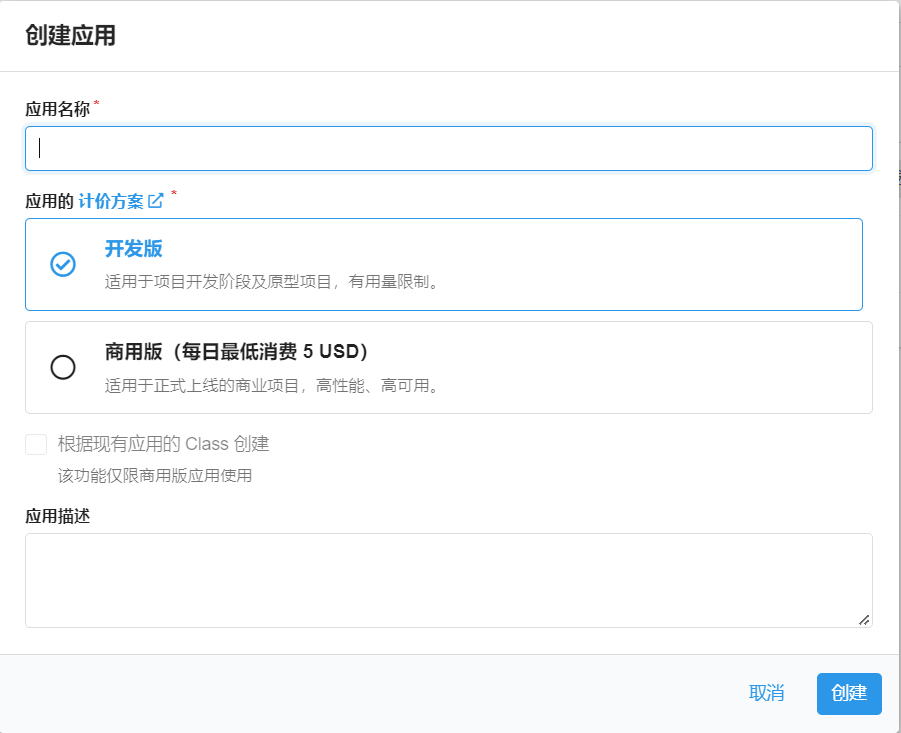
Click Create Application in the upper left corner and choose a name you like (please select the free development plan):
-
Enter the application, select
Settings>Application Keysin the lower left corner. You can see yourAPP ID,APP Key, andMaster Key. Please record them for later use.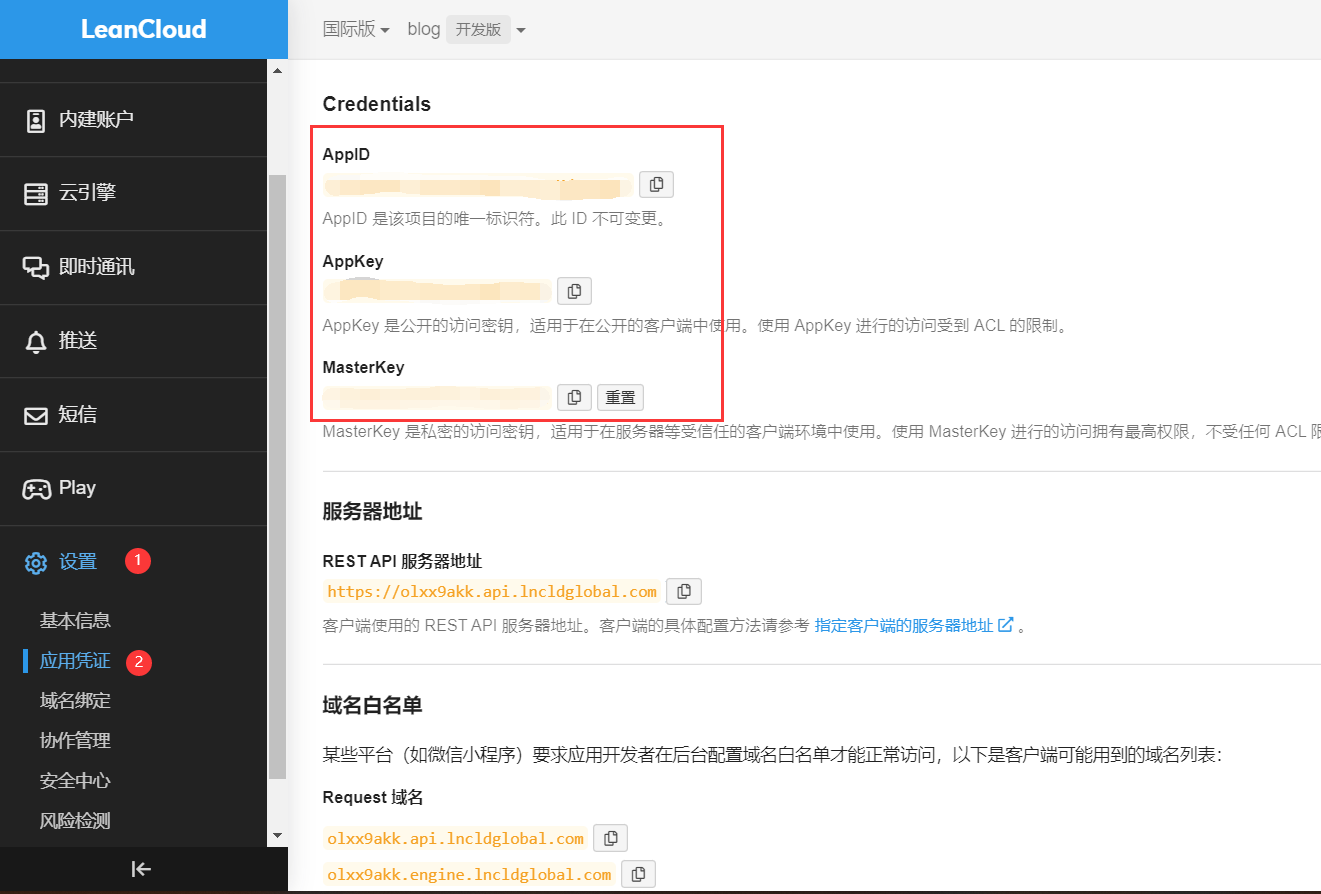
:::
::: warning Domestic version requires ICP filing
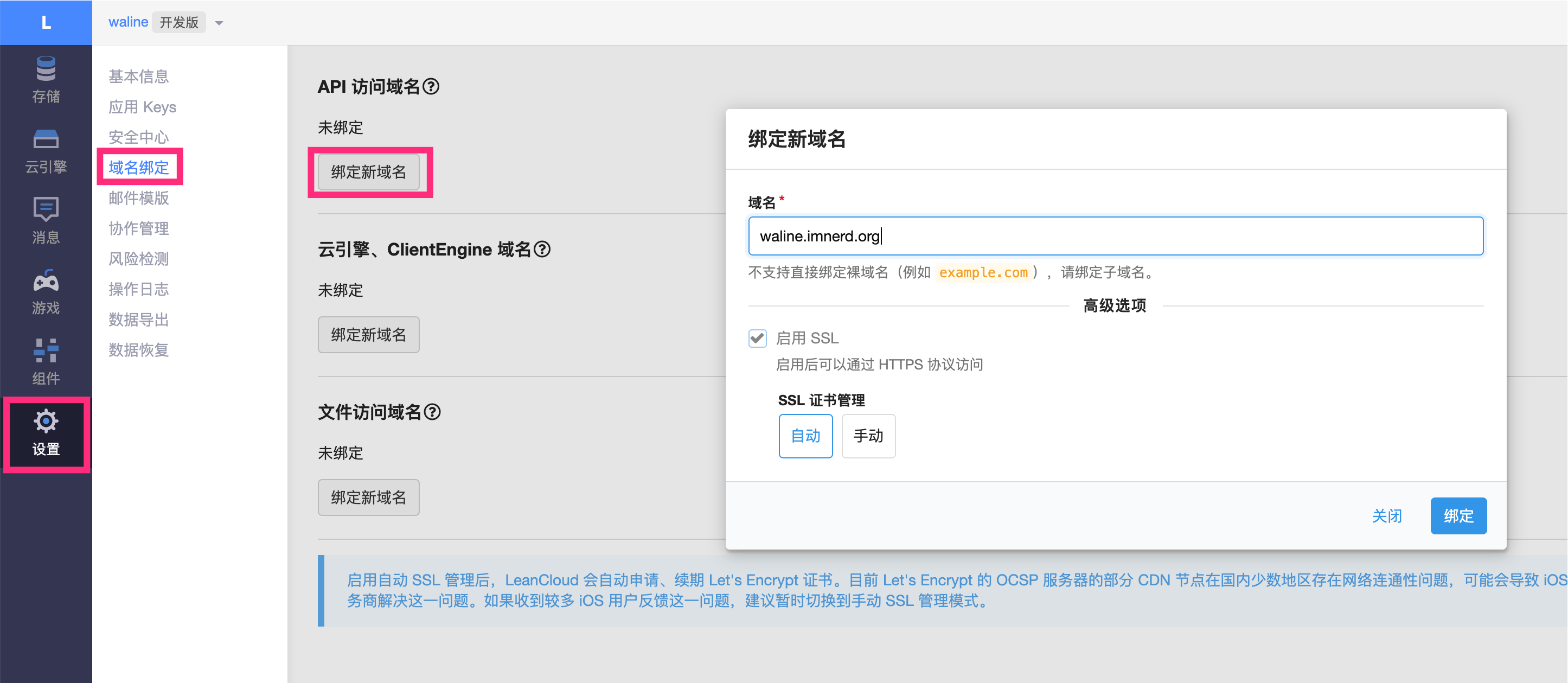
If you are using the LeanCloud domestic version (leancloud.cn), we recommend switching to the international version (leancloud.app). Otherwise, you need to bind an already ICP-filed domain to the application, purchase an independent IP, and complete the ICP filing process:
- Log in to the domestic version and enter the application you need to use
- Select
Settings>Domain Binding>API Access Domain>Bind New Domain> Enter domain >OK. - Follow the instructions on the page to complete the CNAME resolution in DNS as required.
- Purchase an independent IP and submit a work order to complete the ICP filing. (The current price for an independent IP is ¥50/month)
:::
Vercel Deployment (Server)
:::: steps
-
Click the button above to jump to Vercel for server-side deployment.
::: note
If you are not logged in, Vercel will prompt you to register or log in. Please use your GitHub account for quick login.
:::
-
Enter a Vercel project name you like and click
Createto continue: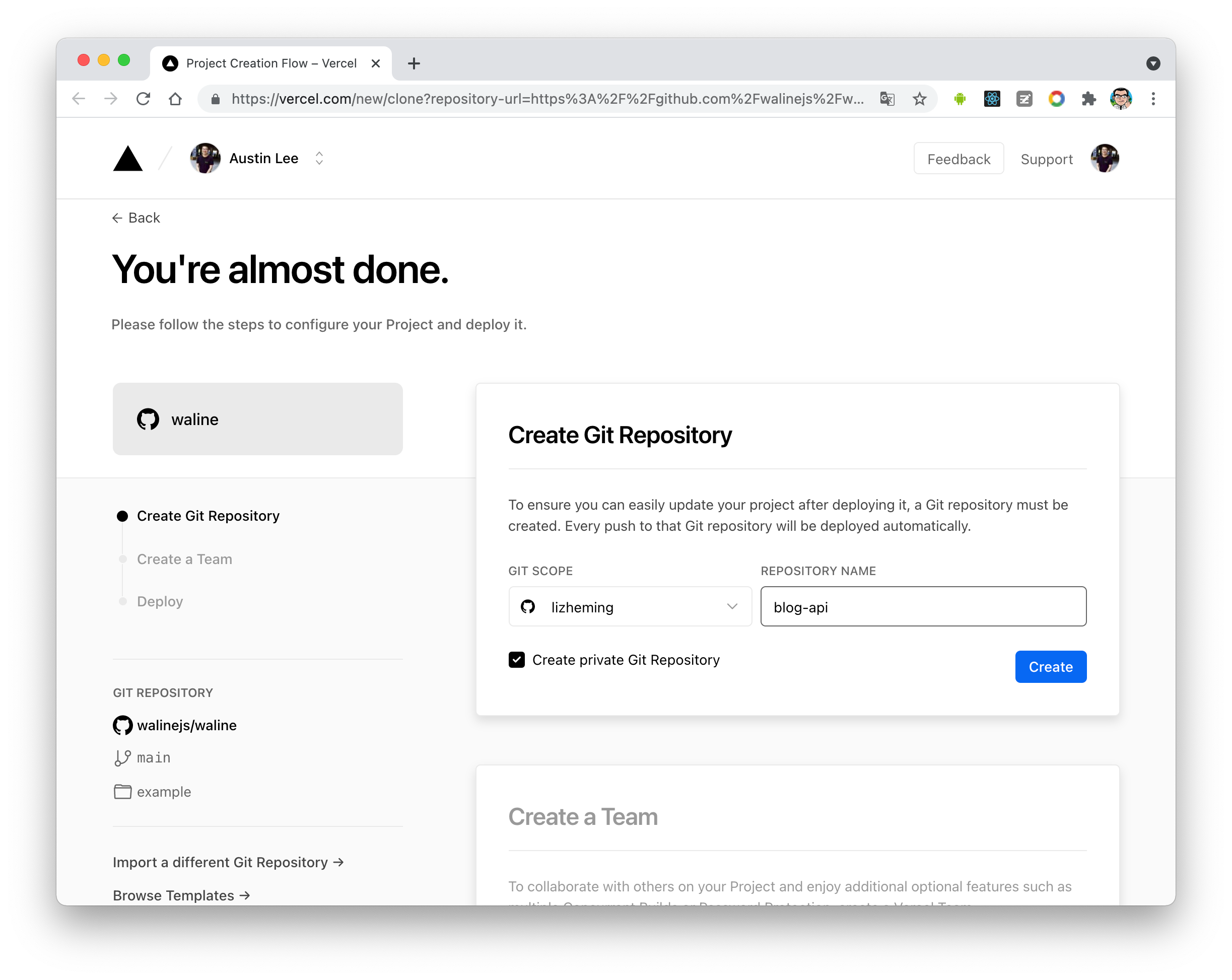
-
At this point, Vercel will help you create and initialize a repository based on the Waline template, with the repository name being the project name you entered earlier.
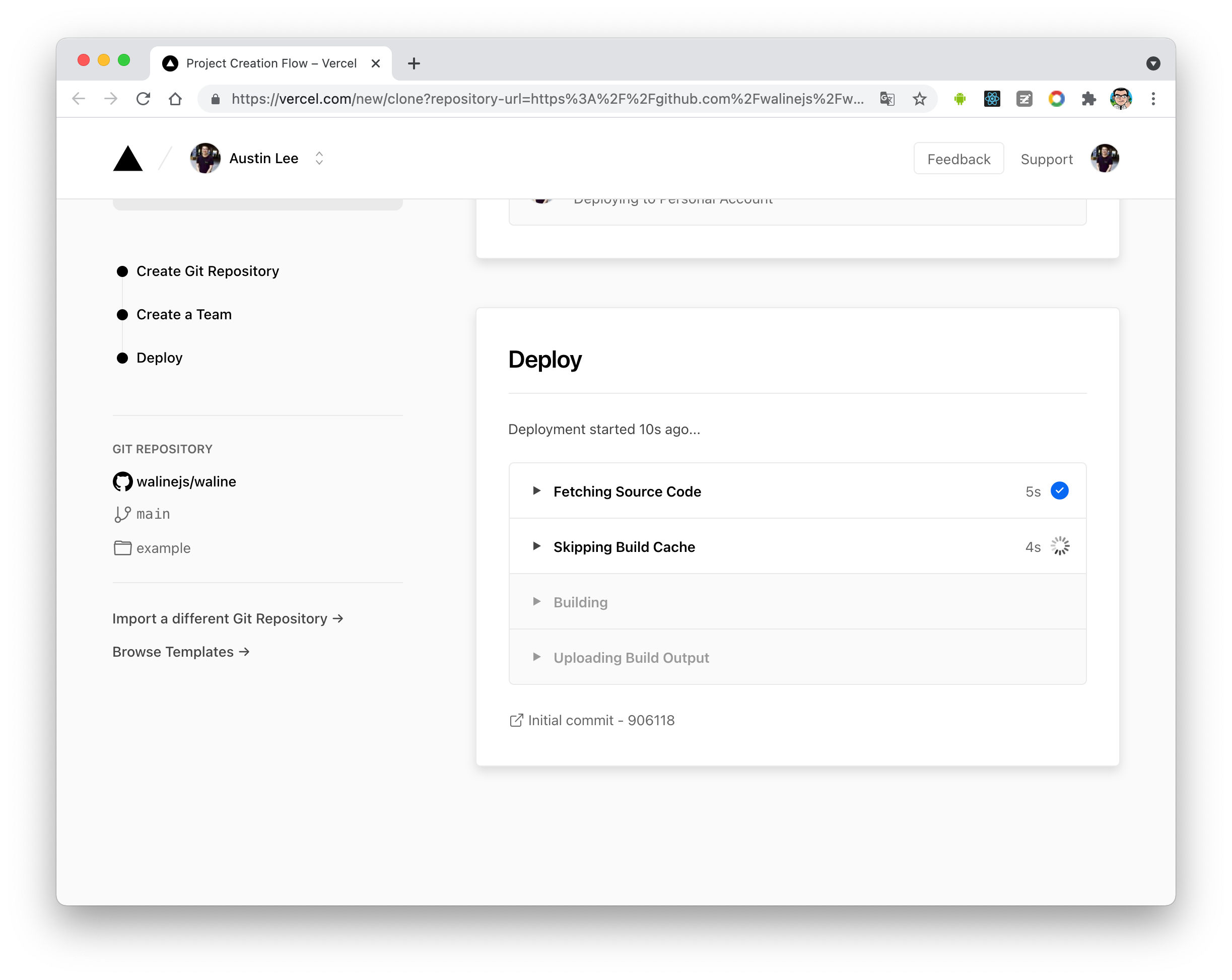
After a minute or two, a full screen of fireworks will celebrate your successful deployment. Click
Go to Dashboardto jump to the application's console.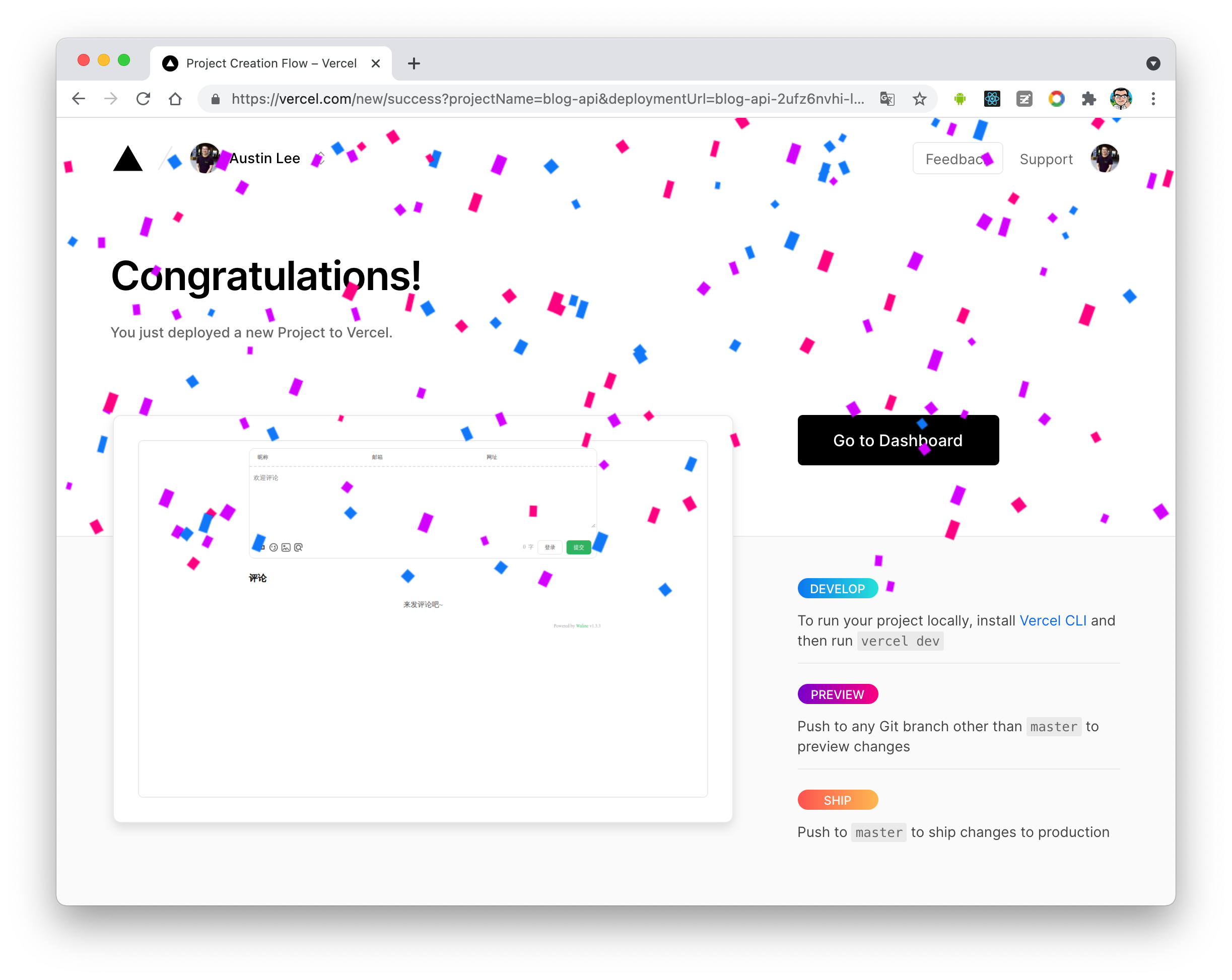
-
Click
Settingsat the top -Environment Variablesto enter the environment variable configuration page, and configure the three environment variablesLEAN_ID,LEAN_KEY, andLEAN_MASTER_KEY. Their values correspond to theAPP ID,APP KEY, andMaster Keyobtained from LeanCloud in the previous step, respectively.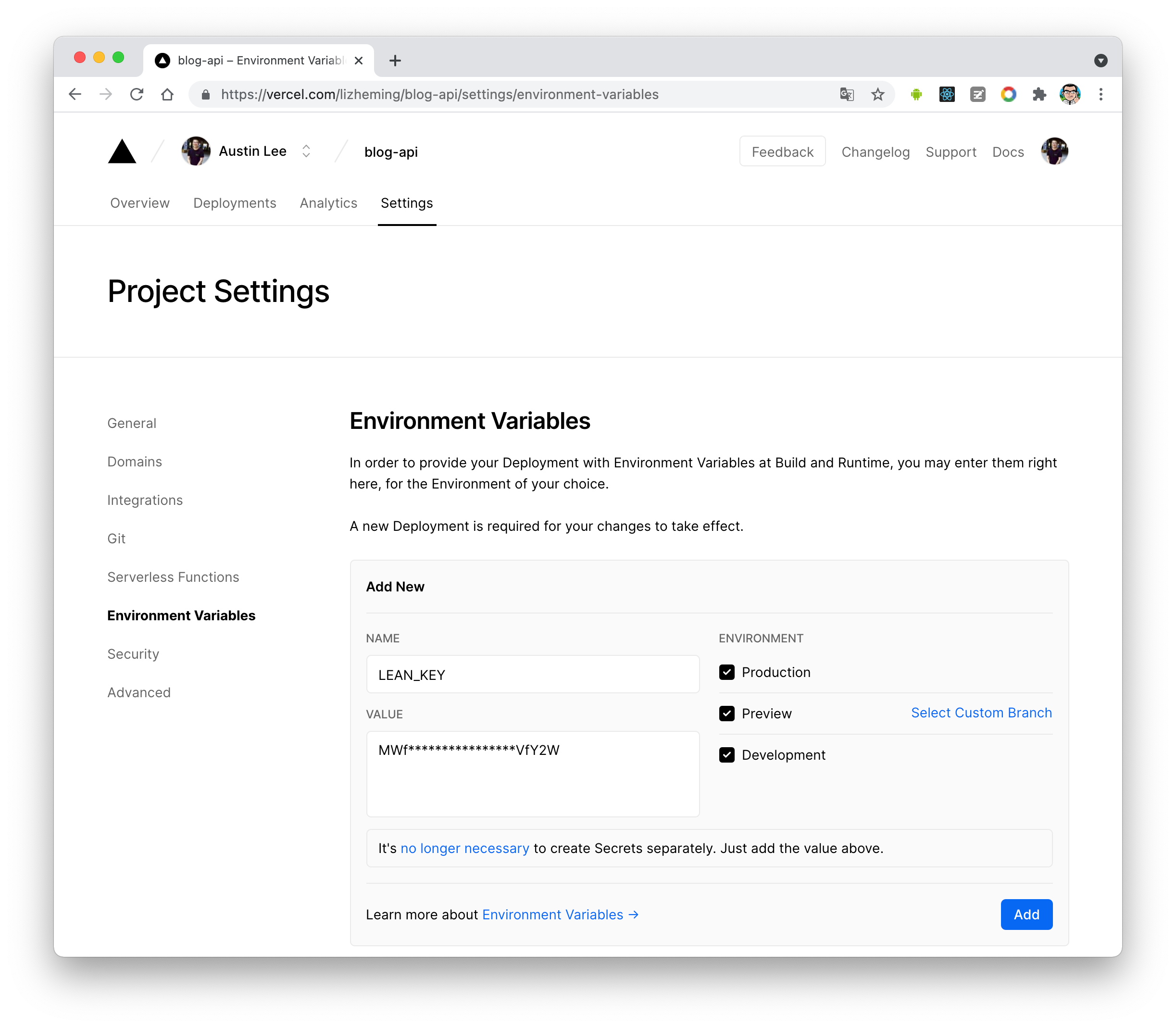
::: note
If you are using the LeanCloud domestic version, please additionally configure the
LEAN_SERVERenvironment variable with the value of your bound domain.:::
-
After configuring the environment variables, click
Deploymentsat the top, then click theRedeploybutton on the right side of the latest deployment to redeploy. This step is to make the environment variables you just set take effect.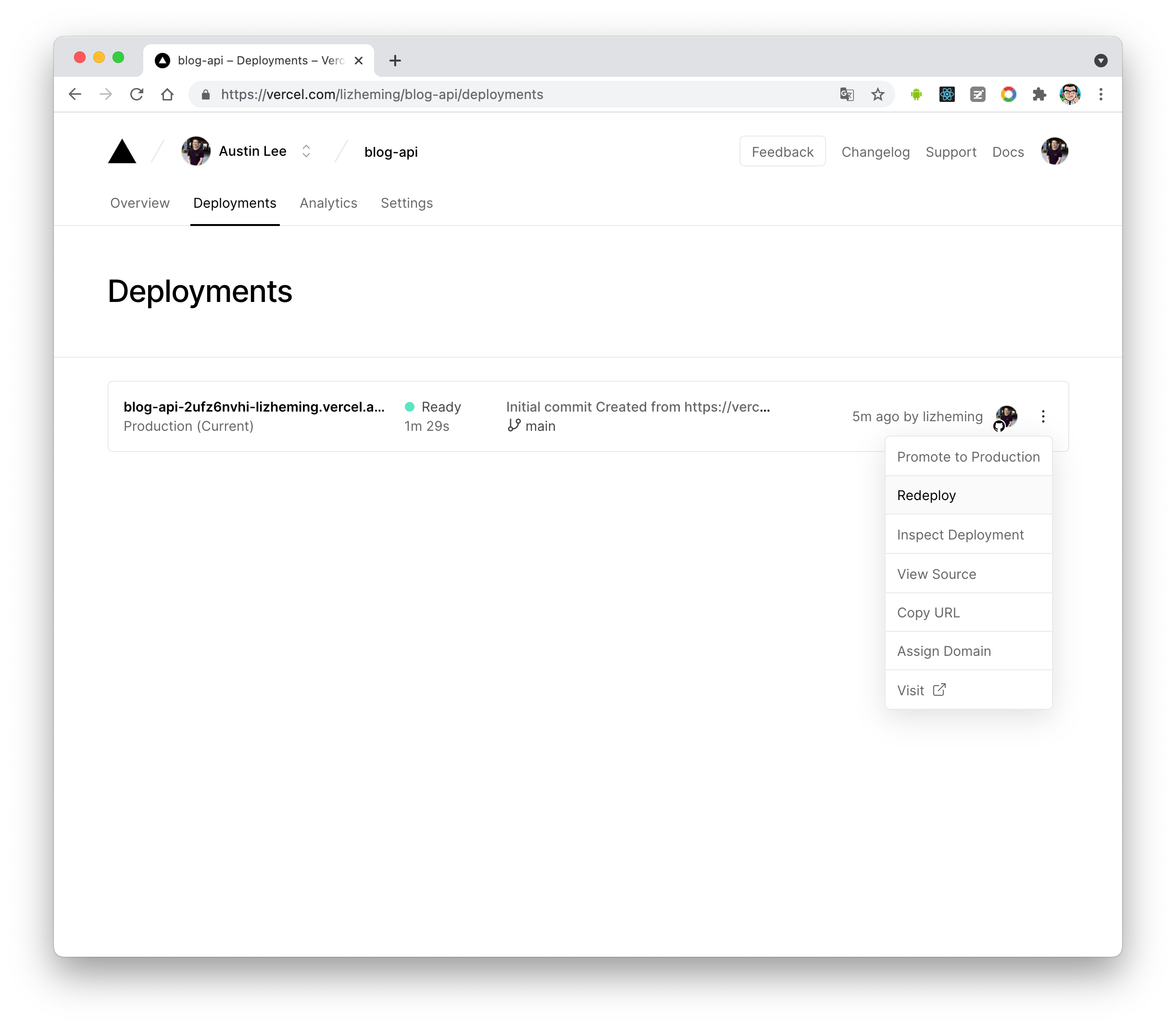
-
At this point, it will jump to the
Overviewinterface to start deployment. Wait a moment until theSTATUSbecomesReady. Then clickVisitto jump to the deployed website address, which is your server address.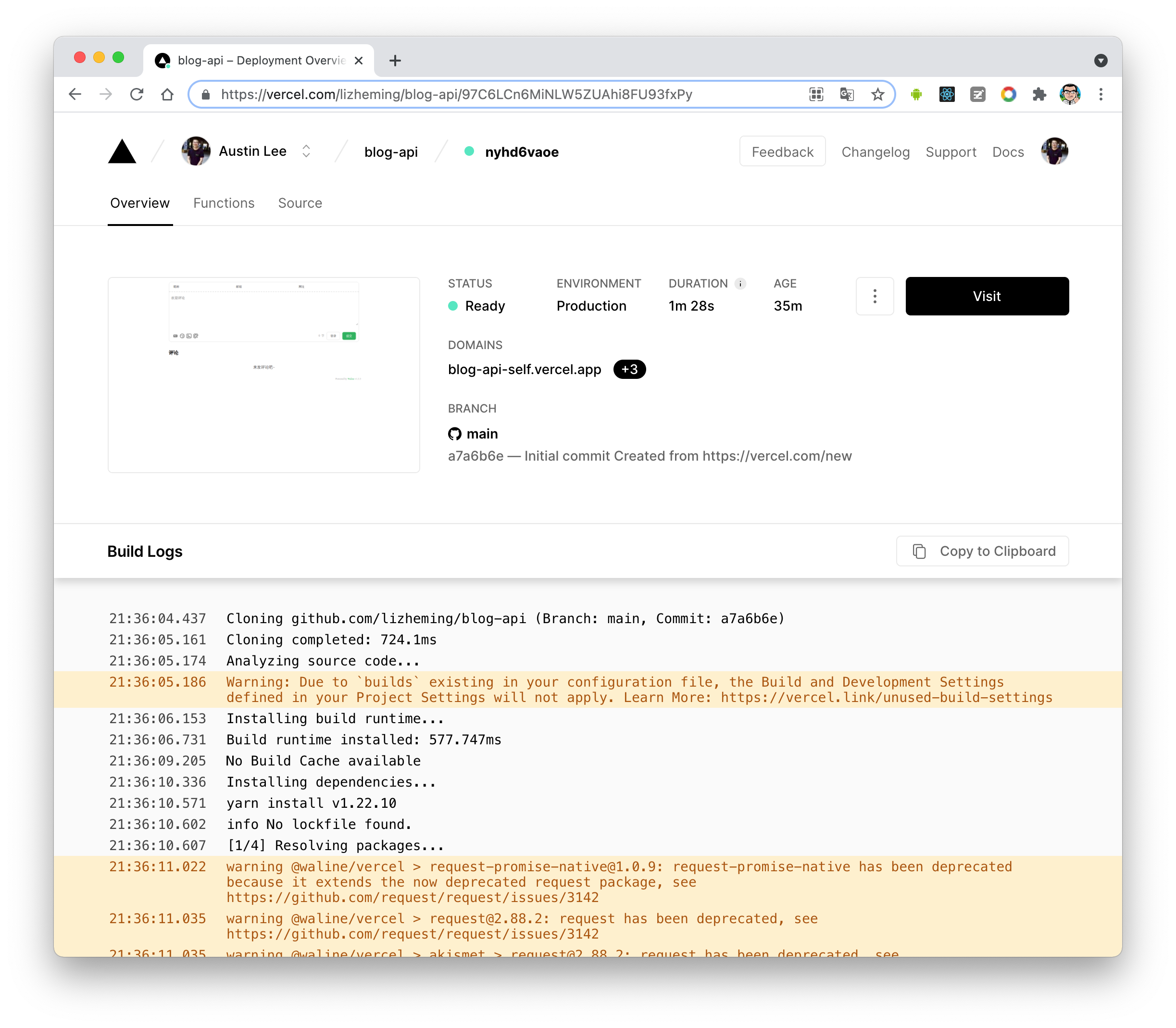
::::
Domain Binding (Optional)
::: steps
-
Click
Settings-Domainsat the top to enter the domain configuration page. -
Enter the domain you want to bind and click
Add.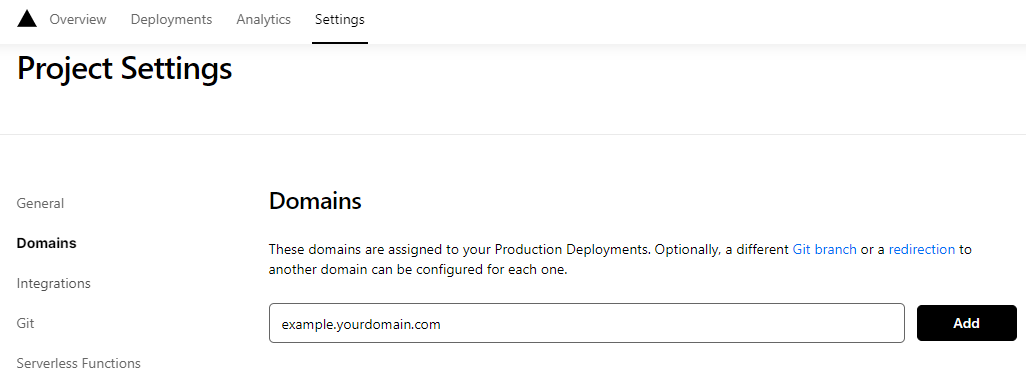
-
Add a new
CNAMErecord at your domain DNS provider.Type Name Value CNAME example cname.vercel-dns.com -
Wait for it to take effect. You can now access it via your own domain 🎉
- Comment system: example.your-domain.com
- Comment management: example.your-domain.com/ui

:::
Client
Using the Plugin
Set provider: "Waline" in the plugin options, and set the server address serverURL to the value obtained in the previous step.
At this point, place the <CommentService> component in a suitable location on your website
(usually at the bottom of the page) to use the Waline comment functionality.
::: tip
You can also pass other options supported by Waline (except el). For details, see Waline Configuration.
:::
Comment Management (Admin Panel)
::: steps
-
After deployment is complete, please visit
<serverURL>/ui/registerto register. The first person to register will be set as the administrator. -
After logging in as an administrator, you can see the comment management interface. Here you can modify, mark, or delete comments.
-
Users can also register accounts through the comment box. After logging in, they will be redirected to their own profile page.
:::