
4.7 KiB
title, icon, createTime, permalink
| title | icon | createTime | permalink |
|---|---|---|---|
| Masonry Card | ri:layout-masonry-line | 2025/10/08 17:17:06 | /en/guide/components/card-masonry/ |
Overview
The Masonry Card is a versatile container component that automatically calculates the height of
each item and arranges them in a masonry layout. Any content can be placed within <CardMasonry>.
::: details What is an item?
An item represents individual content such as an image, text, video, etc.
- In Markdown syntax, any content occupying its own line (with blank lines before and after) is considered an item.
- In HTML structure, each direct child element of the container is considered an item.
:::
<CardMasonry>

<img src="..." alt="...">

<!-- More content -->

</CardMasonry>
Props
:::: field-group
::: field name="cols" type="number | { sm: number, md: number, lg: number }" optional Number of columns.
The component automatically adjusts the number of columns based on screen width by default. Three columns are displayed when space permits, while two columns are shown on smaller screens.
The cols prop configures the number of columns. When a number is provided,
all screen sizes display number columns. When { sm: number, md: number, lg: number } is provided,
the number of columns adjusts automatically based on screen width.
sm:< 640pxmd:>= 640px < 960pxlg:>= 960px:::
::: field name="gap" type="number" optional default="16" Gap between columns. :::
::::
Markdown Syntax Support
In Markdown, the ::: card-masonry container can be used instead of <CardMasonry>.
::: card-masonry cols="3" gap="16" <!-- [!code hl]-->

<!-- More content -->
::: <!-- [!code hl]-->
Examples
Image Masonry
Masonry layout is particularly suitable for displaying images. You can directly place  within ::: card-masonry.
Input:
::: card-masonry


:::
Output:
::: card-masonry



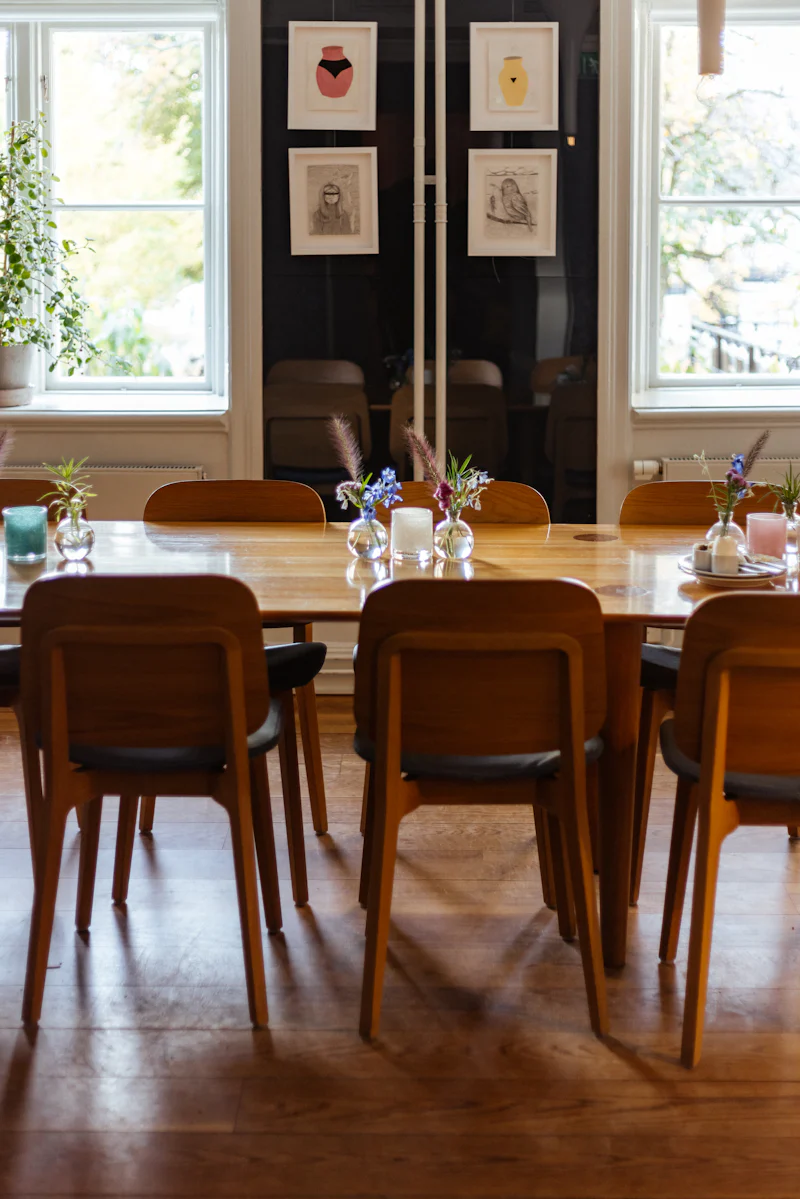
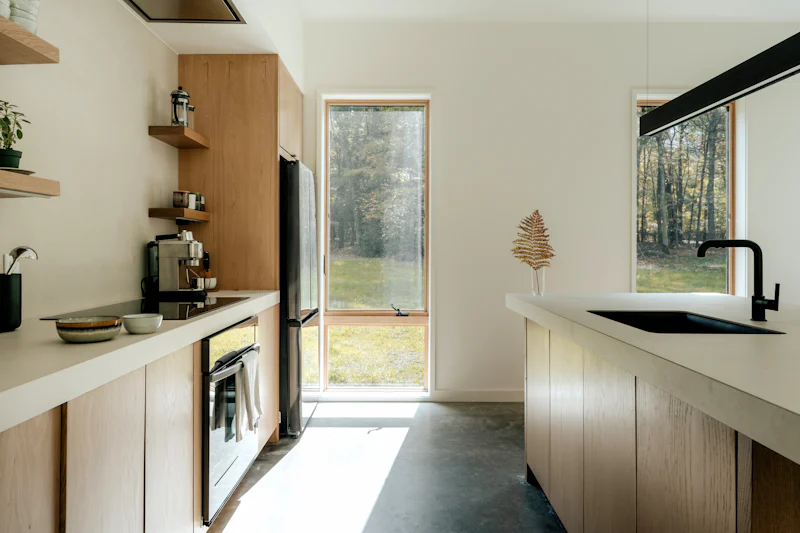


Card Masonry
Masonry layout is also suitable for displaying cards. You can place ::: card containers within ::: card-masonry.
Input:
:::: card-masonry

::: card title="Card 1"
Card content
:::

::: card title="Card 2"
Card content

Additional card content
:::

::: card title="Card 3"
Card content
:::

::: card title="Card 4"
Card content
:::

::: card title="Card 5"
Card content

Additional card content
:::

::: card title="Card 6"
Card content
:::

::::
Output:
:::: card-masonry
::: card title="Card 1" Card content :::
::: card title="Card 2" Card content
Additional card content :::
::: card title="Card 3" Card content :::
::: card title="Card 4" Card content :::
::: card title="Card 5" Card content
Additional card content :::
::: card title="Card 6" Card content :::
::::
Code Block Masonry
Input:
:::card-masonry

```ts
const a = 1
```

```json
{
  "name": "John"
}
```

```css
p {
  color: red;
}
```

```html
<html>
  <body>
    <h1>Hello world</h1>
  </body>
</html>
```

```ts
const a = 12
const b = 1
```

```rust
fn main() {
    println!("Hello, world!");
}
```

:::
Output:
:::card-masonry
const a = 1
{
  "name": "John"
}
p {
  color: red;
}
<html>
  <body>
    <h1>Hello world</h1>
  </body>
</html>
const a = 12
const b = 1
fn main() {
    println!("Hello, world!");
}
:::